Interactively changing the scan limit follows the rules below:
Setting the limit to a number higher than the current number of directory scans allows new/waiting scans to immediately start
Setting the limit to a number lower than the current number of directory scans does not affect scans already running. It will take effect as soon as the number of active scans drops to/below the new limit.
Consider the following example:
A scan was started with a limit of four (--scan-limit 4).
The scan progresses and four directories are actively being scanned and another four are waiting to start.
───────────────────────────────────────────────────────────────────────────
───────────────────────────────────────────────────────────────────────────
───────────────────────────────────────────────────────────────────────────
🦥 Scan limit 4; active 4 🦥
───────────────────────────────────────────────────────────────────────────
0: running https://example.com/
1: running https://example.com/.git/logs/
7: running https://example.com/api/
8: running https://example.com/api/text/
9: waiting https://example.com/api/image/ <-┐
13: waiting https://example.com/api/js/ <-┤ waiting due to max limit of 4
15: waiting https://example.com/api/experiments/text/ <-┤
19: waiting https://example.com/api/experiments/js/ <-┘
There are too many requests flying at once, so you decide to decrease the speed of the overall scan by decreasing the limit from four to two.
At this point, there is no immediately discernable difference. The four active scans will continue to run until they complete. Once there are only two active scans left will the new limit take effect.
After the first scan completes, the number of active scans becomes 3 with a limit of 2.
───────────────────────────────────────────────────────────────────────────
───────────────────────────────────────────────────────────────────────────
───────────────────────────────────────────────────────────────────────────
🦥 Scan limit 2; active 3 🦥
───────────────────────────────────────────────────────────────────────────
0: complete https://example.com/
1: running https://example.com/.git/logs/
7: running https://example.com/api/
8: running https://example.com/api/text/
9: waiting https://example.com/api/image/
13: waiting https://example.com/api/js/
15: waiting https://example.com/api/experiments/text/
19: waiting https://example.com/api/experiments/js/
After the second scan completes, the number of active scans becomes 2 with a limit of 2.
───────────────────────────────────────────────────────────────────────────
───────────────────────────────────────────────────────────────────────────
───────────────────────────────────────────────────────────────────────────
🦥 Scan limit 2; active 2 🦥
───────────────────────────────────────────────────────────────────────────
0: complete https://example.com/
1: complete https://example.com/.git/logs/
7: running https://example.com/api/
8: running https://example.com/api/text/
9: waiting https://example.com/api/image/
13: waiting https://example.com/api/js/
15: waiting https://example.com/api/experiments/text/
19: waiting https://example.com/api/experiments/js/
When the third scan completes, the first waiting scan can start; the active scans remains 2 with a limit of 2.
───────────────────────────────────────────────────────────────────────────
───────────────────────────────────────────────────────────────────────────
───────────────────────────────────────────────────────────────────────────
🦥 Scan limit 2; active 2 🦥
───────────────────────────────────────────────────────────────────────────
0: complete https://example.com/
1: complete https://example.com/.git/logs/
7: complete https://example.com/api/
8: running https://example.com/api/text/
9: running https://example.com/api/image/ <-- started after third scan completed
13: waiting https://example.com/api/js/
15: waiting https://example.com/api/experiments/text/
19: waiting https://example.com/api/experiments/js/
Version 1.12.0 expanded the pause/resume functionality introduced in v1.4.0 by adding an interactive menu from which currently running recursive scans can be cancelled, without affecting the overall scan. Scans can still be paused indefinitely by pressing ENTER.
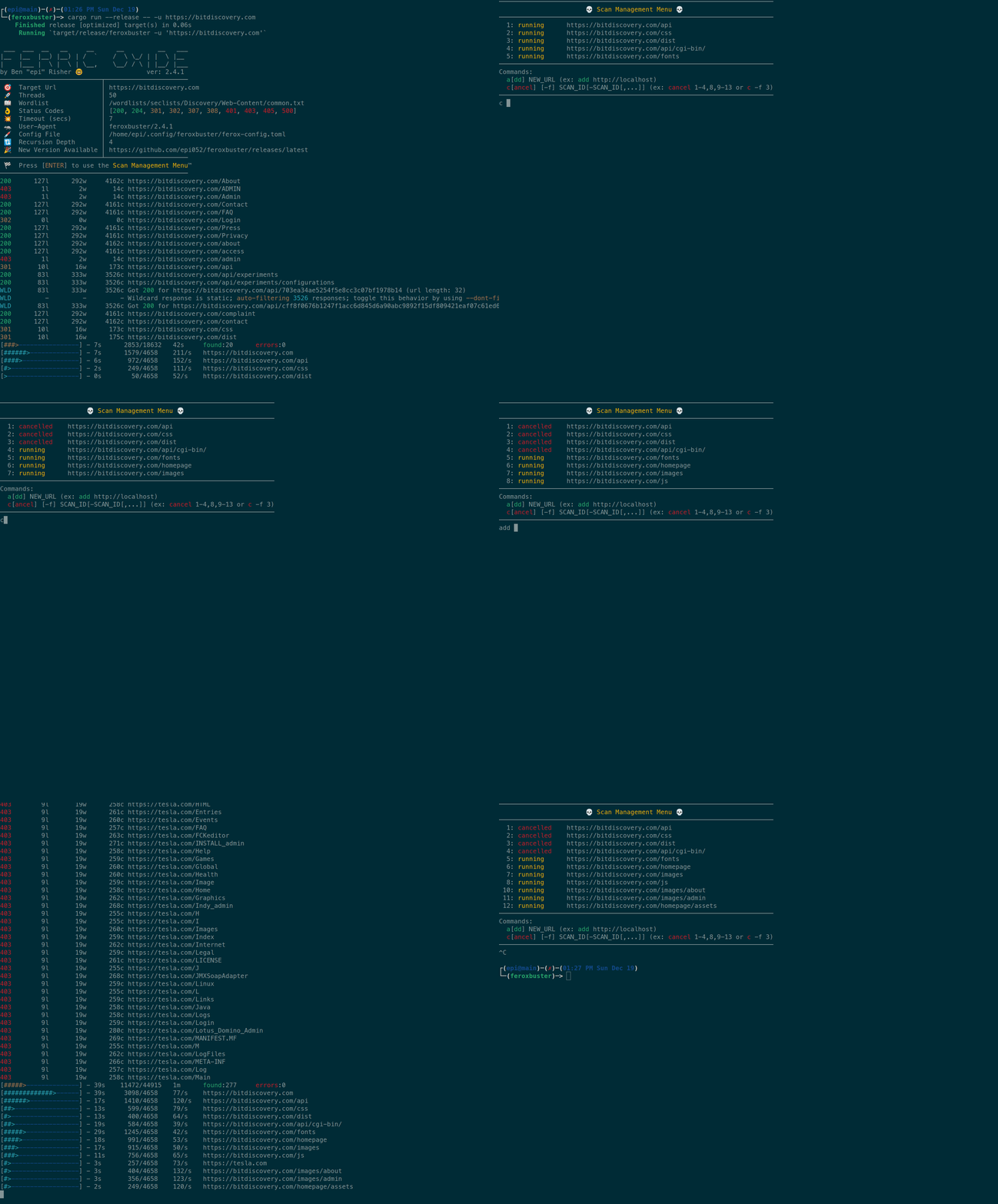
Version 2.4.1 expanded functionality even further with the ability to add a brand-new scan. Now that cancelling is no longer the only action available to users, the name has been updated to the Scan Management Menu ™.
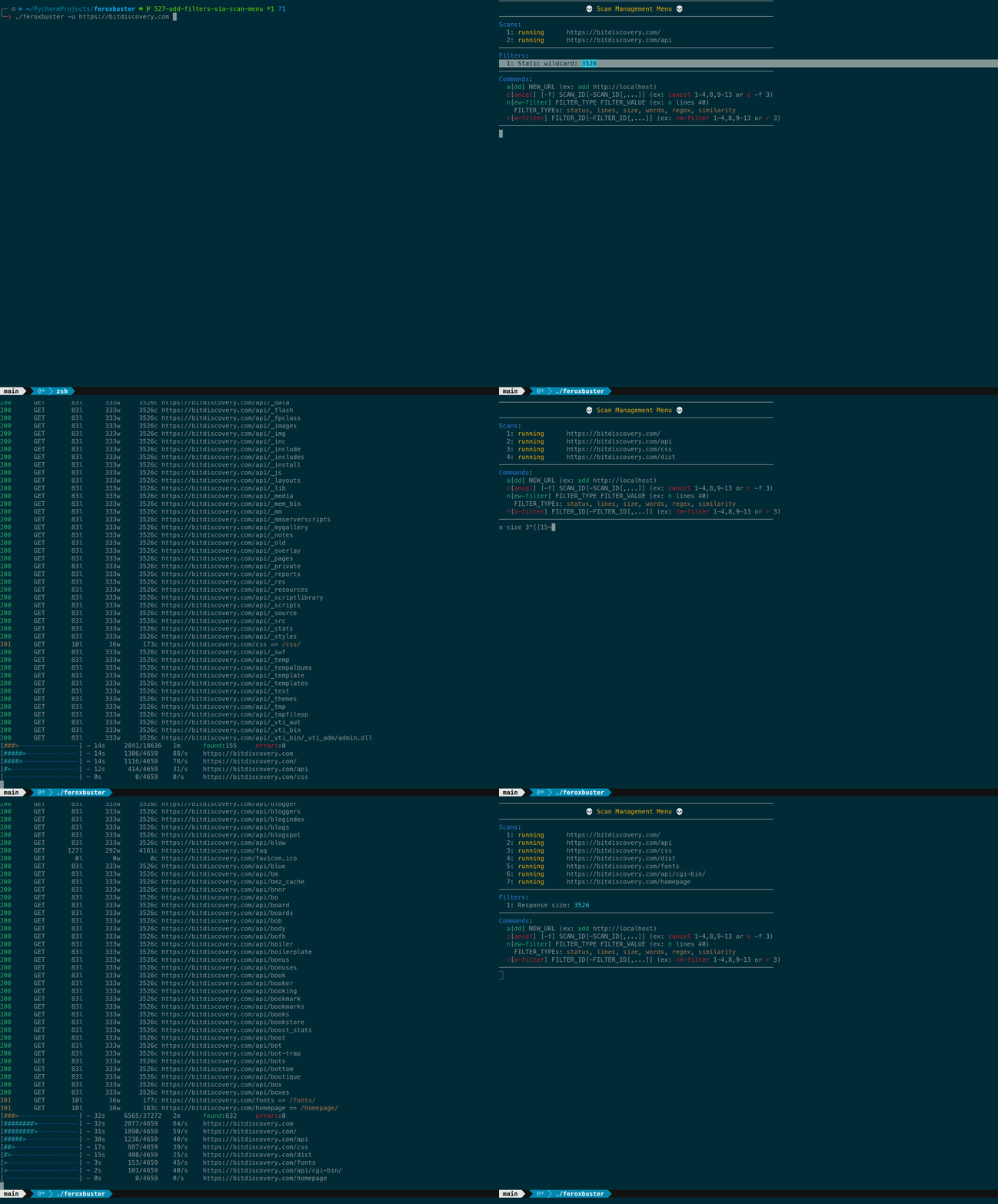
Version 2.6.2 brought yet another capability: users can now add new filters to their current scan. Adding a new filter works the same as though you had specified --filter-* on the command-line.
Version 2.12.0 continued to improve on the Scan Management Menu ™ menu by adding the ability to adjust the maximum number of concurrent directory scans that can progress at any given time. Additionally, a status line showing the current limit and how much of that limit is actively in use (i.e. number of active directory scans). Setting a new scan limit works the same as though you had specified -L|--scan-limit on the command line.
Below is an example of the Scan Cancel Management Menu™.
Using the menu is pretty simple: from a running scan, press ENTER to view the menu
Choose a scan to cancel by entering cancel or c followed by its scan index (1)
more than one scan can be selected by using a comma-separated list of indexes and/or ranges (1-4,8,9-13 … etc)
Confirm selections, after which all non-cancelled scans will resume
To skip confirmation, simply add a -f somewhere in your input (3-5 -f)
Enter add or a followed by the new url you’d liked you add to the current scan queue
Enter new-filter or n, then the type of filter you’d like to add, and the value to pass to the filter itself.
Valid filter types:
statuslinessizewordsregexsimilarity
Examples:
n status 301 - equivalent to command-line option --filter-status 301new-filter lines 1 - equivalent to command-line option --filter-lines 1new-filter words 7 - equivalent to command-line option --filter-words 7n regex token:[0-9a-zA-Z]+ - equivalent to command-line option --filter-regex 'token:[0-9a-zA-Z]+'n similarity https://target.url/page/with/csrf-token - equivalent to command-line option --filter-similar-to https://target.url/page/with/csrf-tokennew-filter size 1337 - equivalent to command-line option --filter-size 1337
Enter set-limit or s followed by the new limit of concurrent directories you’d like to scan.
Here is a short demonstration of the menu’s cancel and add capabilities. They’re shown on an older version of the menu, but the functionality has not changed for these two commands.
Another short demo, this time showcasing the menu’s new-filter and rm-filter commands.